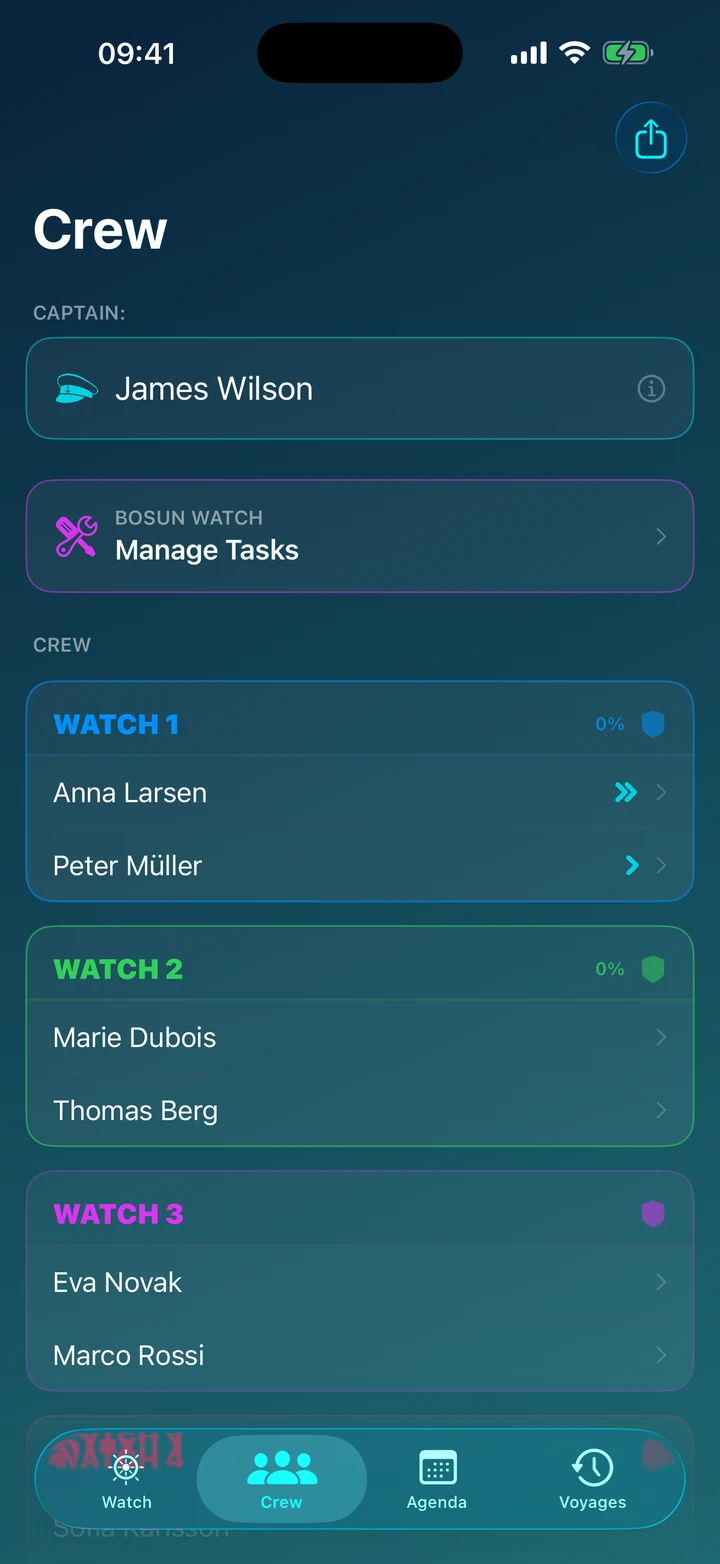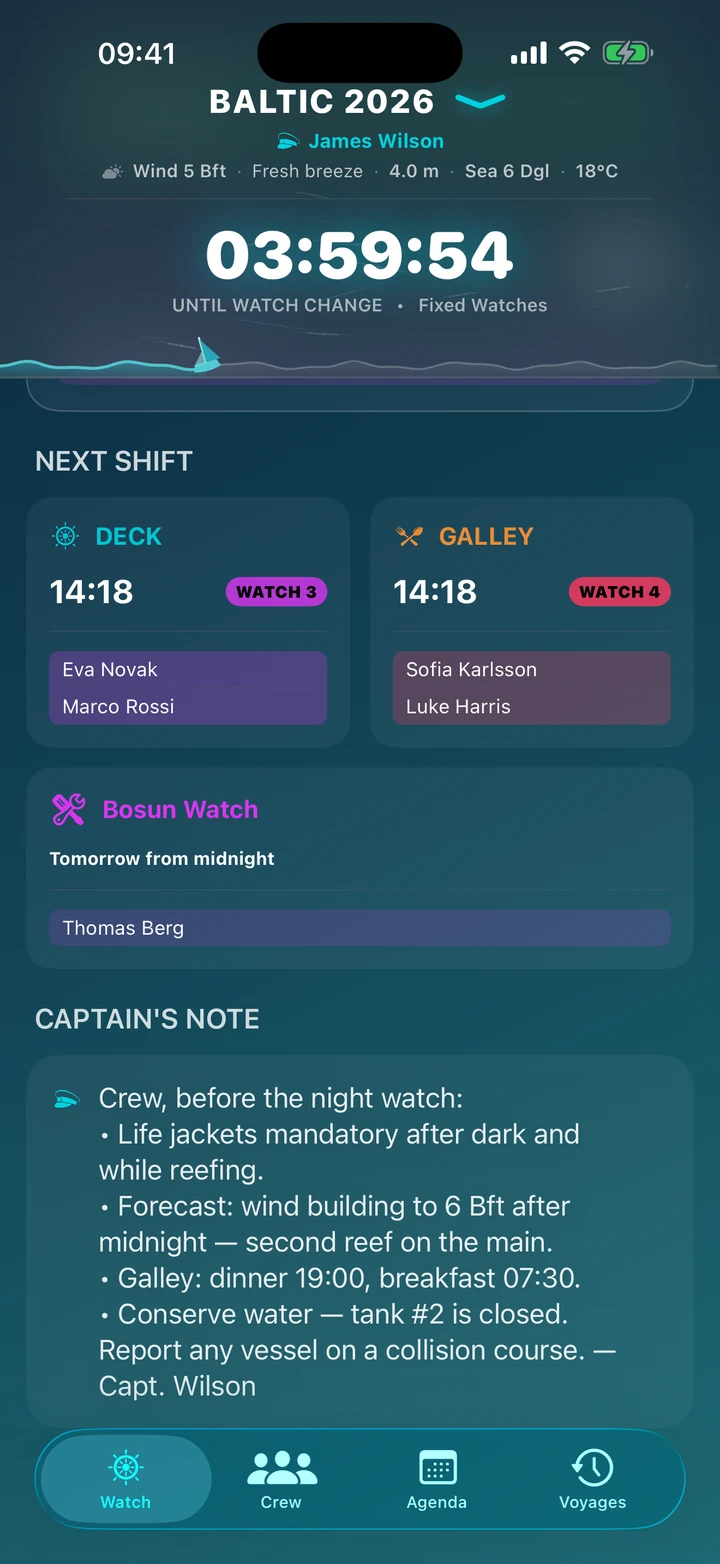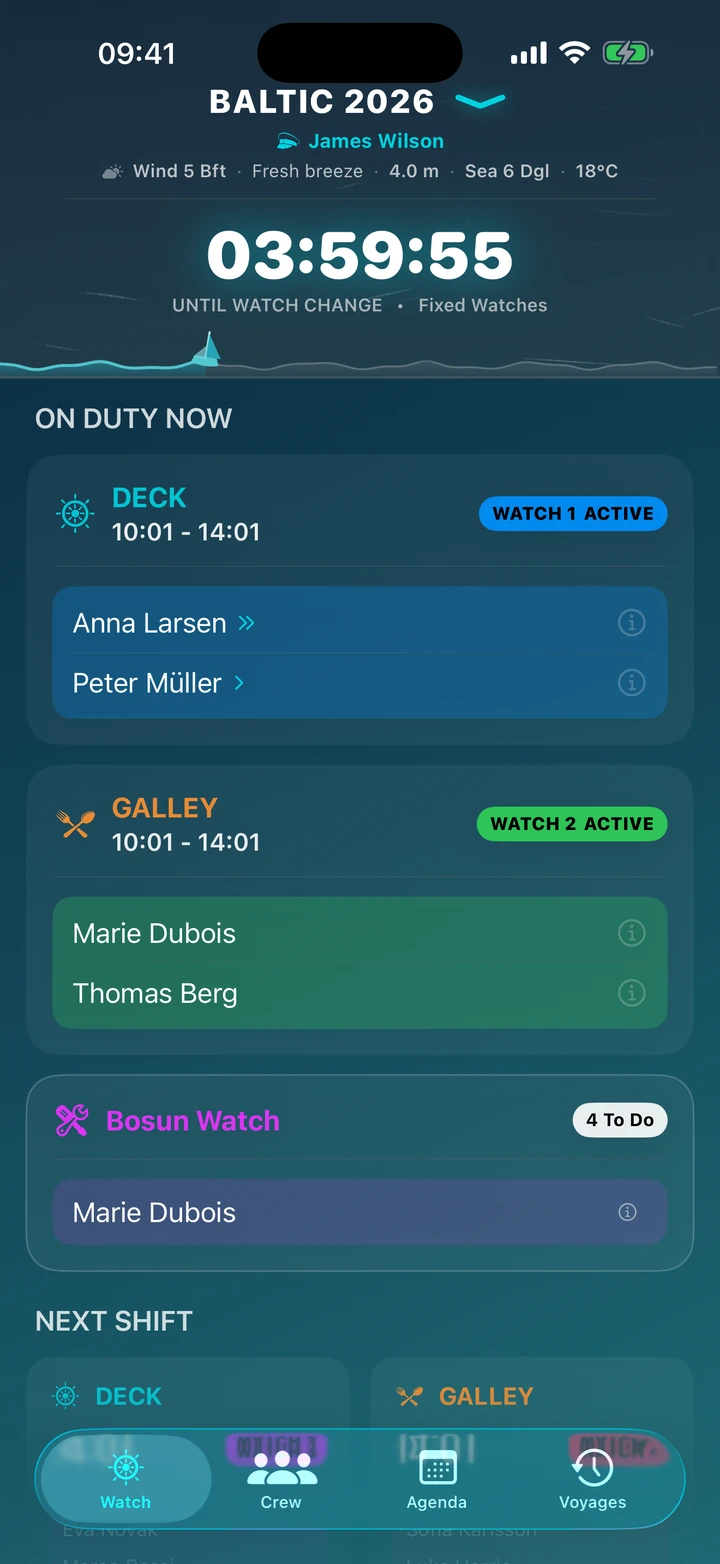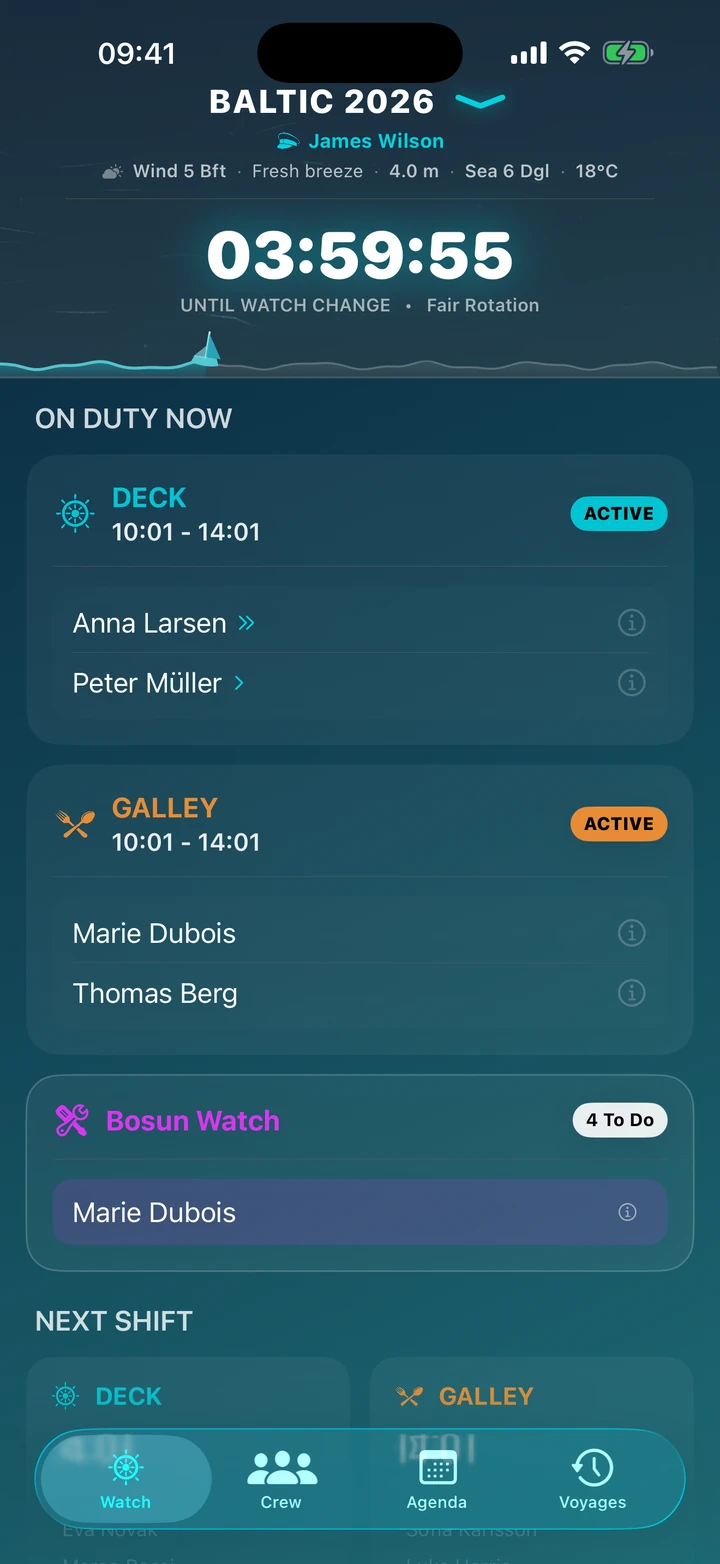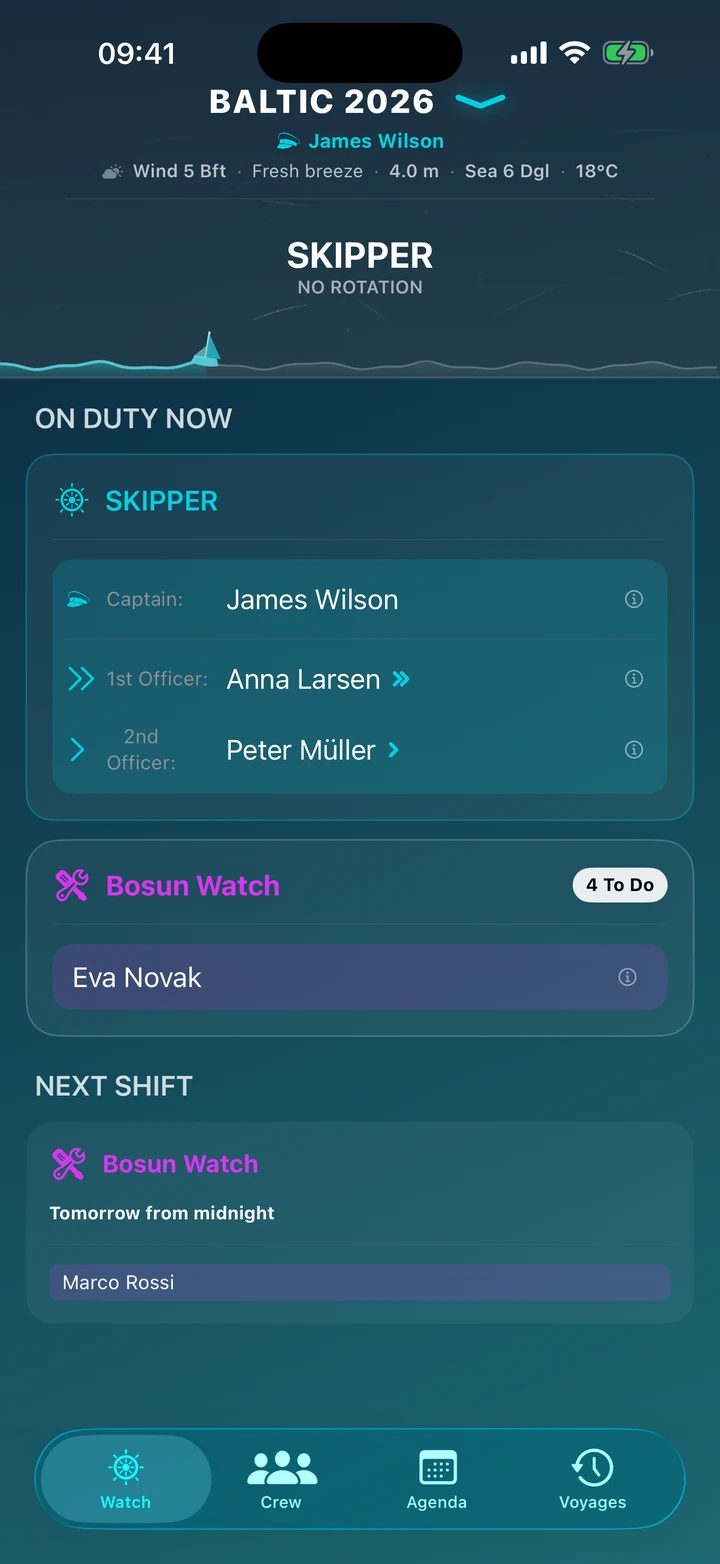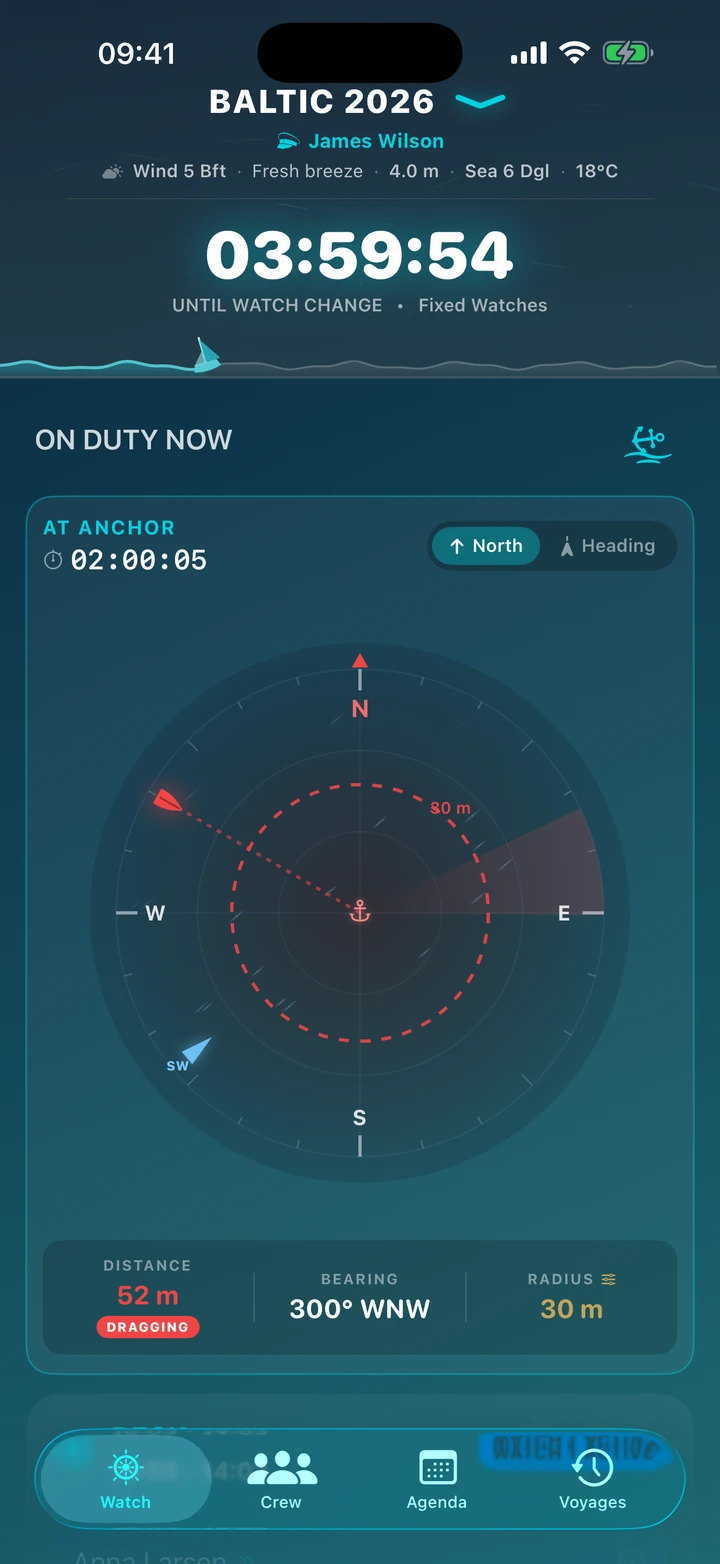

Attendance lists with live preview. Status icons show who is sleeping and who is on duty.
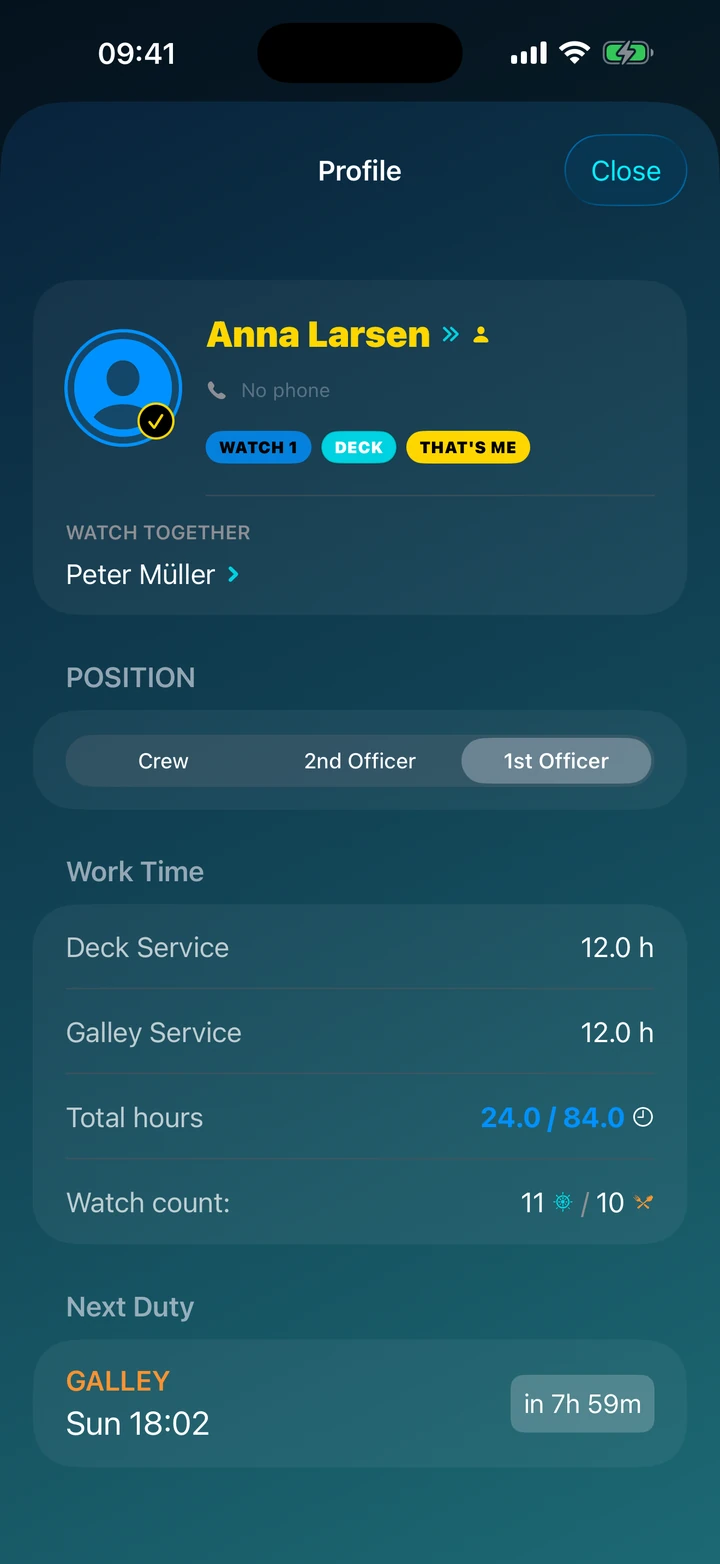
Statistics display each sailor’s workload.
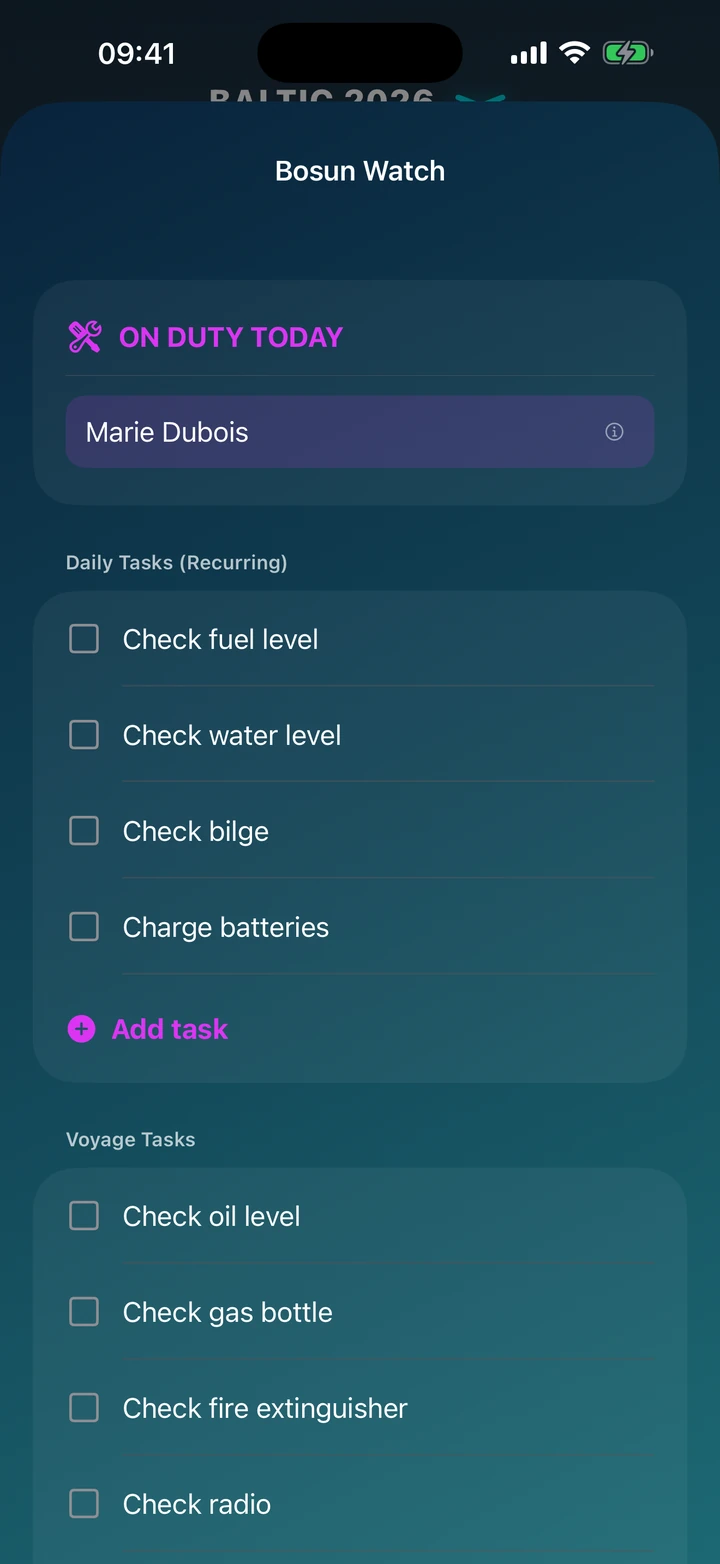
Here you’ll find the bosun task lists and crew cards.
You can also enable the “It’s me” option here.
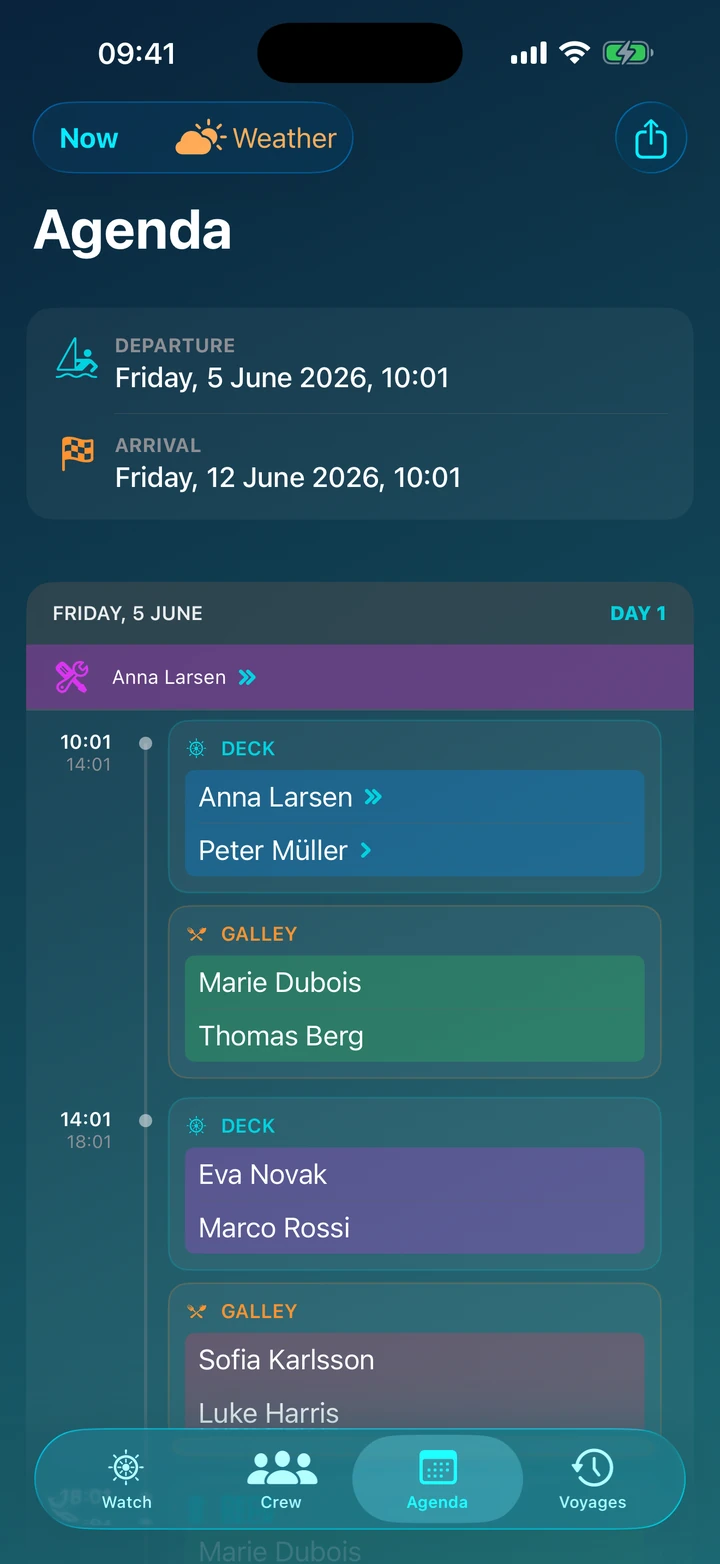
A timeline of the entire voyage. A clear day-by-day view. You can check when your next watch is, even days in advance.
Your sailing history – access completed voyages, statistics of miles sailed, and hours spent on watch.
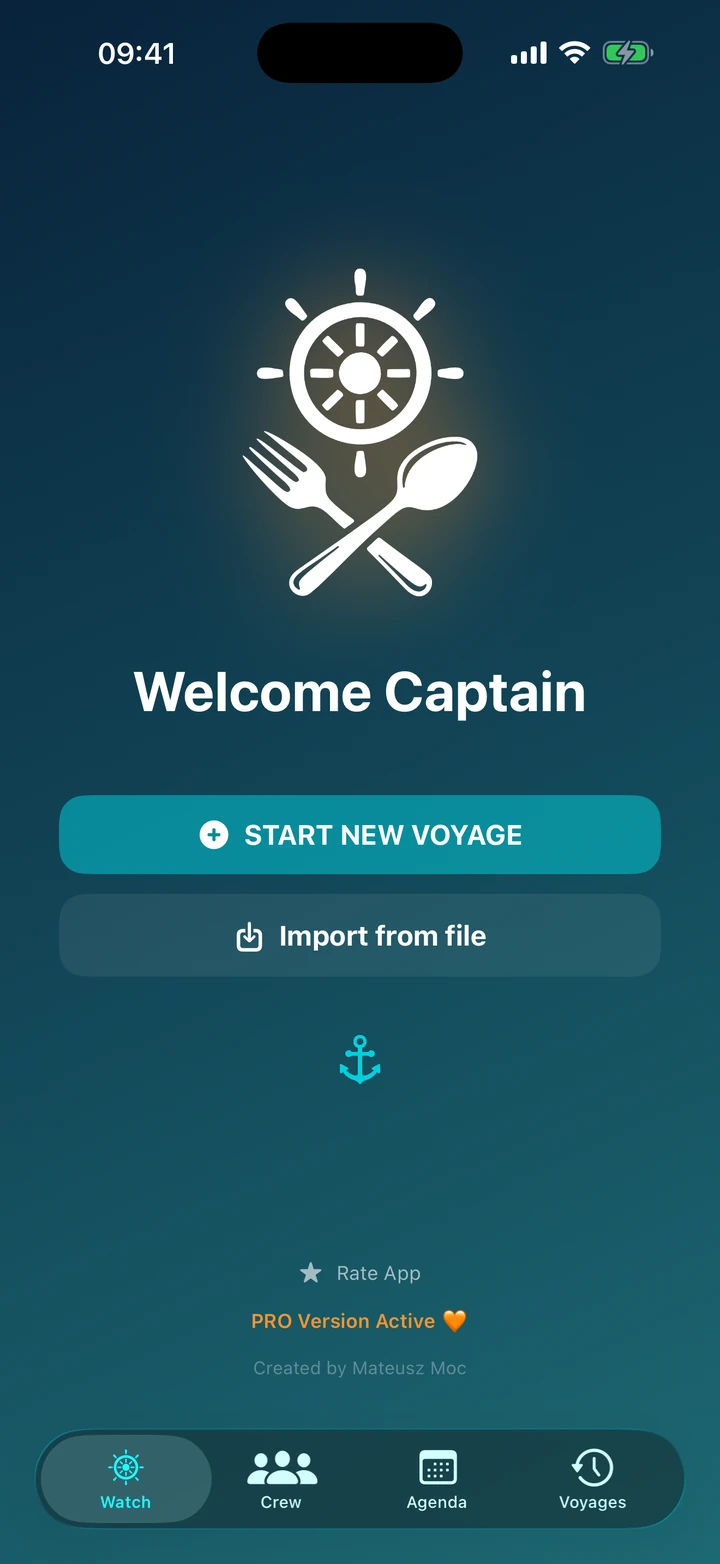
Section for creating new voyages or importing voyages shared by other crew members.
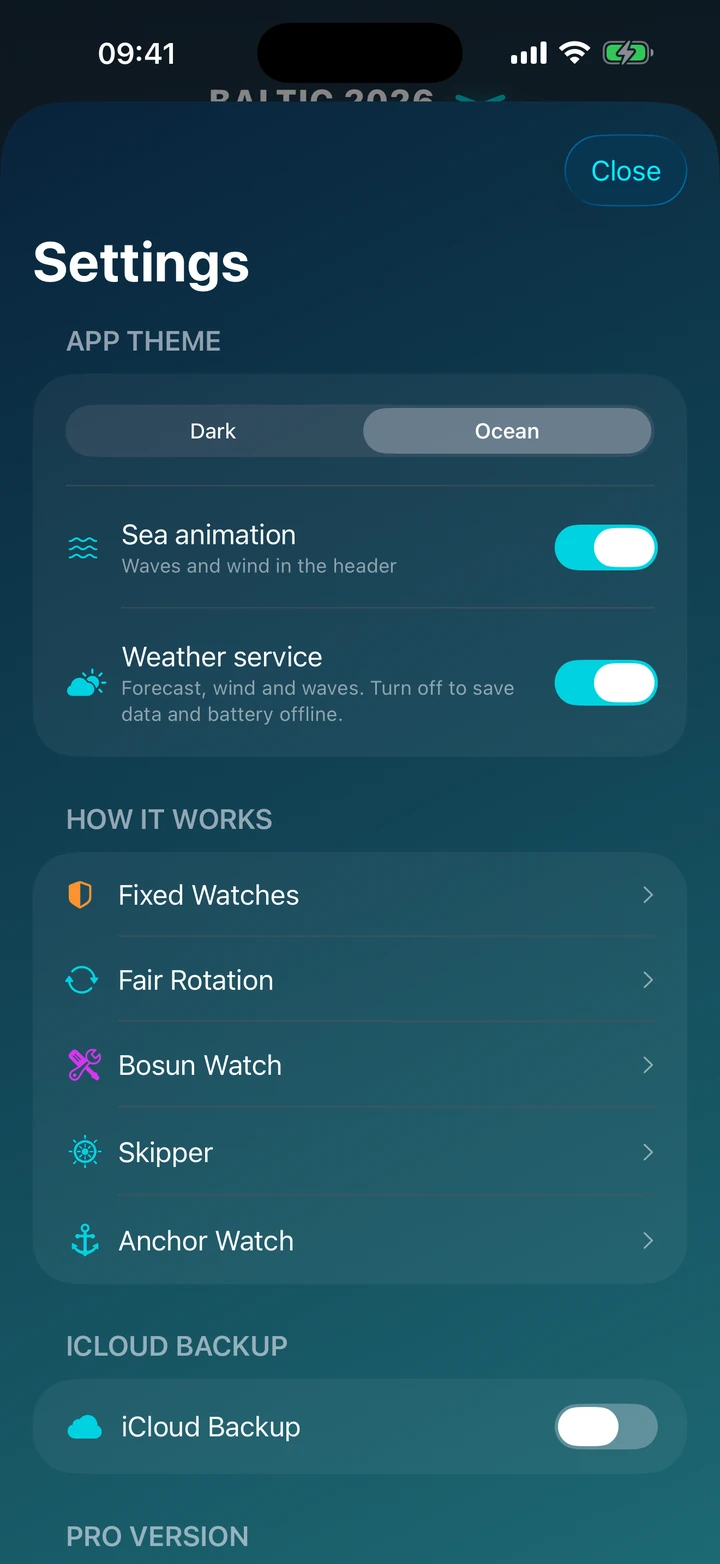
Display mode settings – dark mode for night adventures and light mode for more comfortable viewing.
Detailed scenario descriptions and a store with the option to purchase the PRO version.
Stability and predictability. A classic of sailing.
In this mode, you divide the crew into fixed teams (watches). Janek always sails with Kasia, and Marek with Tomek. This is the perfect solution when you want to build teamwork within subgroups and maintain a strict daily routine. You know exactly who’s at the helm with you and when you go to sleep — from the start to the end of the voyage.
Choose this mode if you value a consistent daily rhythm.
Everyone sails with everyone. No more boredom or arguments.
Let the algorithm take care of morale! The rotational system shuffles watch assignments at every change. This helps the crew bond better, and no one feels disadvantaged by worse hours or a more challenging partner. The app ensures that everyone spends the same amount of time on deck and in the galley, while maximizing sleep time.
Choose this mode to ensure maximum fairness.
You steer, they rest (or cook).
This mode is designed for family voyages, training trips, or crews with a small number of experienced sailors. In this scenario, the Captain and Officers (Officer Watch) navigate the yacht at all times. The rest of the crew is relieved from steering but can take the 24-hour Bosun Watch — handling order, meals, and the yacht’s technical condition. Safety is in the hands of professionals, hospitality in the hands of the crew.
Choose this mode when navigation rests on the shoulders of the command staff.
How it works: The app does not generate a steering schedule for the crew. The yacht is navigated by the Captain and the 1st and 2nd Officers (either rotationally or at the Captain’s discretion).
Crew role: The crew is assigned to the so-called Bosun Watch. This duty lasts 24 hours (from midnight to midnight).
Bosun duties: Those on the Bosun Watch do not steer but carry out technical and maintenance tasks (checking fuel, water, batteries, preparing meals).
For whom: Voyages with children, commercial trips with a skipper, small crews with many passengers.
Good sailing is not just about steering. It’s about taking care of the vessel.
Forget questions like: “Did anyone check the oil?” or “Why is there no water in the tank?” The Bosun Watch is your digital technical officer.
It’s an independent layer of the schedule, operating in parallel with the navigation (deck) watches. It manages the yacht’s technical and operational tasks.
24-Hour Cycle: Unlike helm watches (changing, for example, every 4 hours), the Bosun Watch lasts a full day (usually from midnight to midnight).
Task Lists (Checklists):
Daily Tasks: Repetitive actions that “reset” every day (e.g., checking water and fuel levels, battery voltage, bilge inspection).
Voyage Tasks: To-do list for the entire voyage (e.g., taking over the yacht, checking life jackets, safety briefing).
Integration with the Schedule:
You can configure the app so the Bosun combines their duties with steering.
You can also enable the “Exclude from watches” option — then the Bosun is relieved from steering for the whole day to focus on cooking, maintenance, and taking care of the crew.
An interface that respects your eyes.
At sea, lighting conditions can change drastically. Duty Shift adapts to them:
Night Mode (Dark): Designed for night watches. Dark backgrounds and muted colors prevent glare, allowing your eyes to stay adjusted to the dark. Check your course, put away your phone, and still see the horizon.
Ocean Mode (Light): A modern, marine gradient (Deep Navy & Teal) that provides perfect contrast and readability in full sunlight on deck.
Don’t wake the whole crew. Wake only the right watch.
Duty Shift is the first app that understands who you are on board. With the “It’s Me” feature, you select your profile from the crew list, and the app personalizes your entire experience:
Discreet Notifications: You receive alerts only before your watch. The rest of the crew sleeps peacefully.
Quick Preview: Your name and upcoming watches are visually highlighted, so one glance at the screen is enough to know when you need to get up.
Activation: Click your avatar on your stats card.
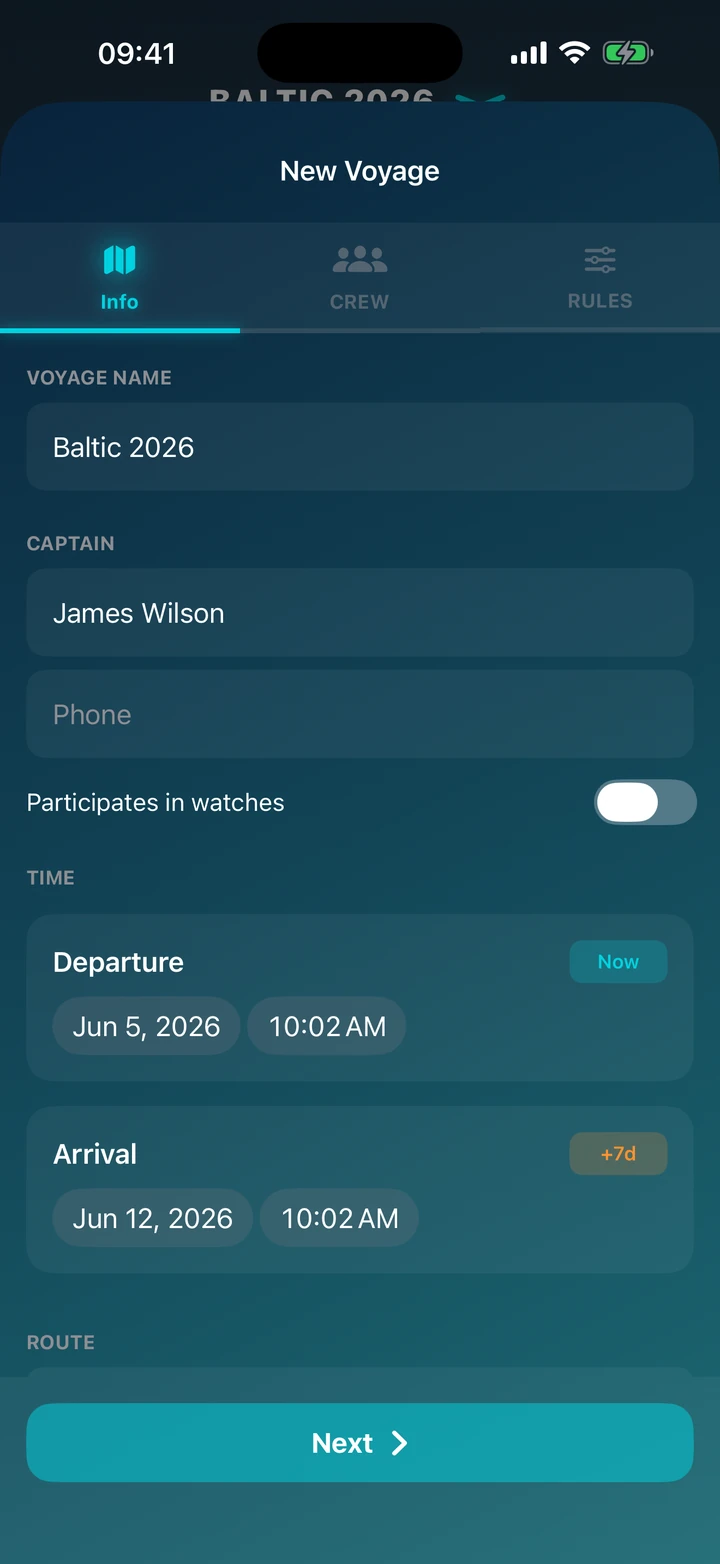
This is where you define the timeframes and geographic scope of your voyage.
Name the Voyage: Enter a name visible to the entire crew (e.g., “Croatia 2025”).
Set the Captain: Enter your details. Use the “Captain participates in watches” toggle if you want the app to include you in the schedule. If you turn it off, you’ll be outside the schedule (as a free commander).
Set the Timeframes:
Specify the planned arrival date (the “+7d” button automatically sets one week).
Set the Route: Click “Start Location” and “End Location” to open the map and precisely select ports or marinas. The app will save the coordinates.
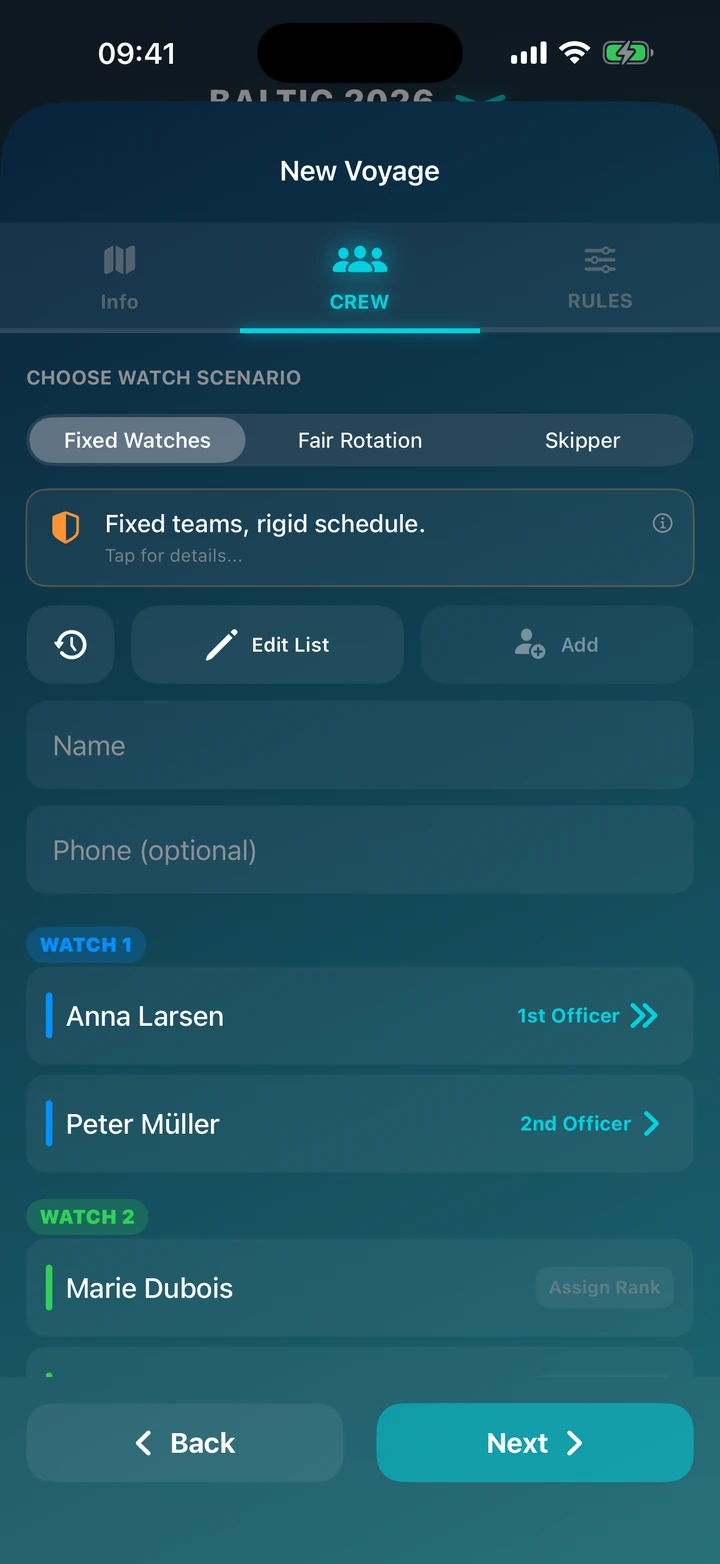
The heart of the app — here you decide which watch system you’ll use and who joins the crew.
Choose a Scenario: At the top, select the watch system:
Rotational System
Skipper
Add Crew:
Enter the name and (optionally) phone number.
Use the “History” button (clock icon) to quickly add friends from previous voyages.
Set the Order: In the Fixed System, the order on the list matters! The first people will form Watch 1, the next Watch 2, and so on. You can move people on the list by dragging the edge of the bar.
Assign Ranks: Click the button next to a name to appoint someone as 1st or 2nd Officer.
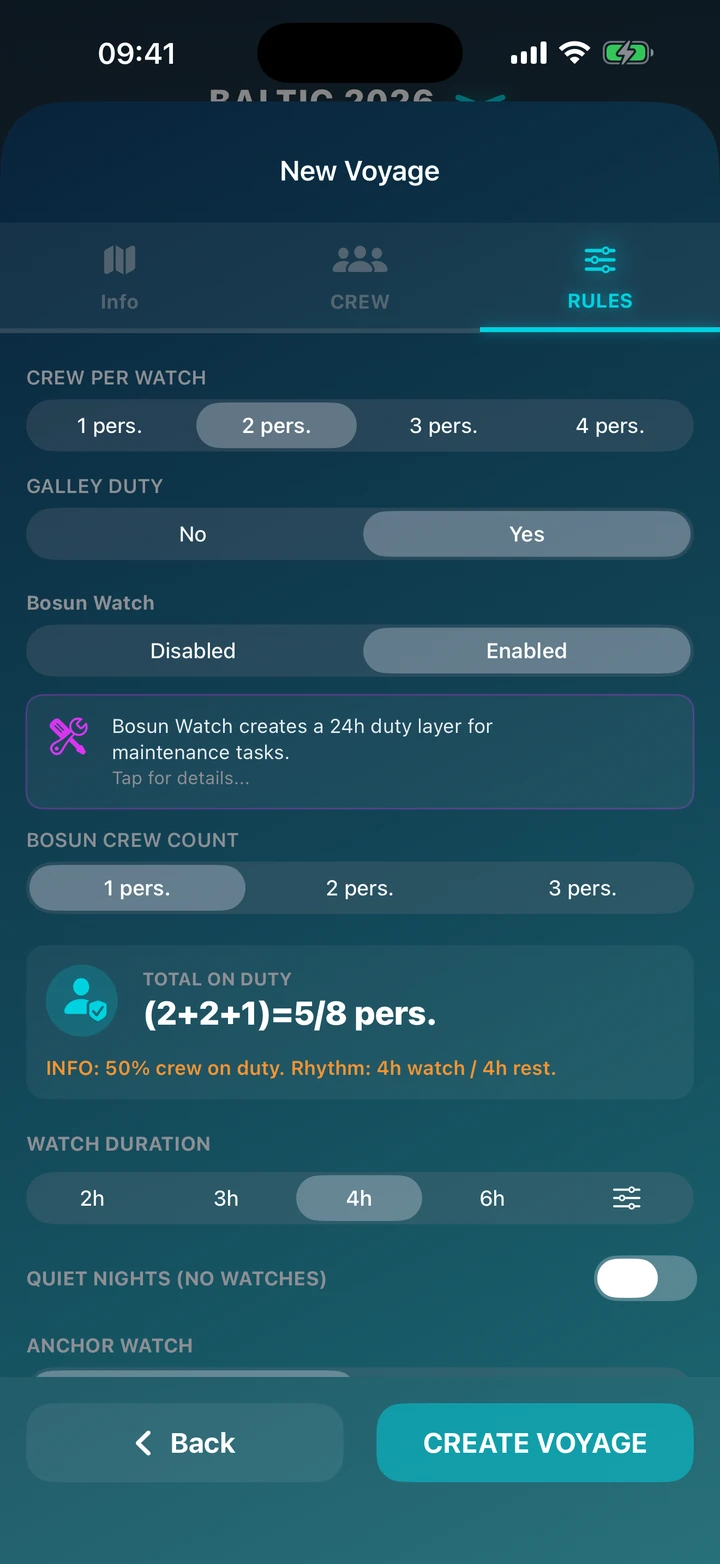
Adjust the algorithm to your yacht’s specifics and crew preferences.
Watch Configuration:
Set how many people will be on deck duty (e.g., 2 people).
Decide if you want an additional galley watch (cooking/cleaning) and how many people it will include.
Tip: The app calculates crew workload in real time. If you overload the watch, you’ll see a warning (e.g., about insufficient sleep).
Bosun Watch (Technical):
You can enable an additional 24-hour duty for yacht maintenance.
Specify whether the Bosun should be excluded from normal watches (technical duties only) or combine functions.
Duration: Choose the length of a single watch (e.g., 3h, 4h) or set a custom time (available in PRO).
Night Mode: If you don’t want to sail at night or want to pause watches in port, enable “Quiet Nights” and define the hours (e.g., 23:00 – 06:00).
Notifications: Configure if and when the crew receives alerts on their phones (e.g., 10 minutes before going on deck).
The Duty Shift app in the Free version is fully functional — it allows creating voyages, choosing different schedule scenarios, managing notifications, creating bosun task lists, setting quiet nights, and marking yourself as “It’s Me.”
However, if you want to share voyages, synchronize an active voyage with your crew via QR code, precisely set watch times, or manage each night individually, consider purchasing the PRO version.
Pay once, sail without limits! Price: 4.99$.
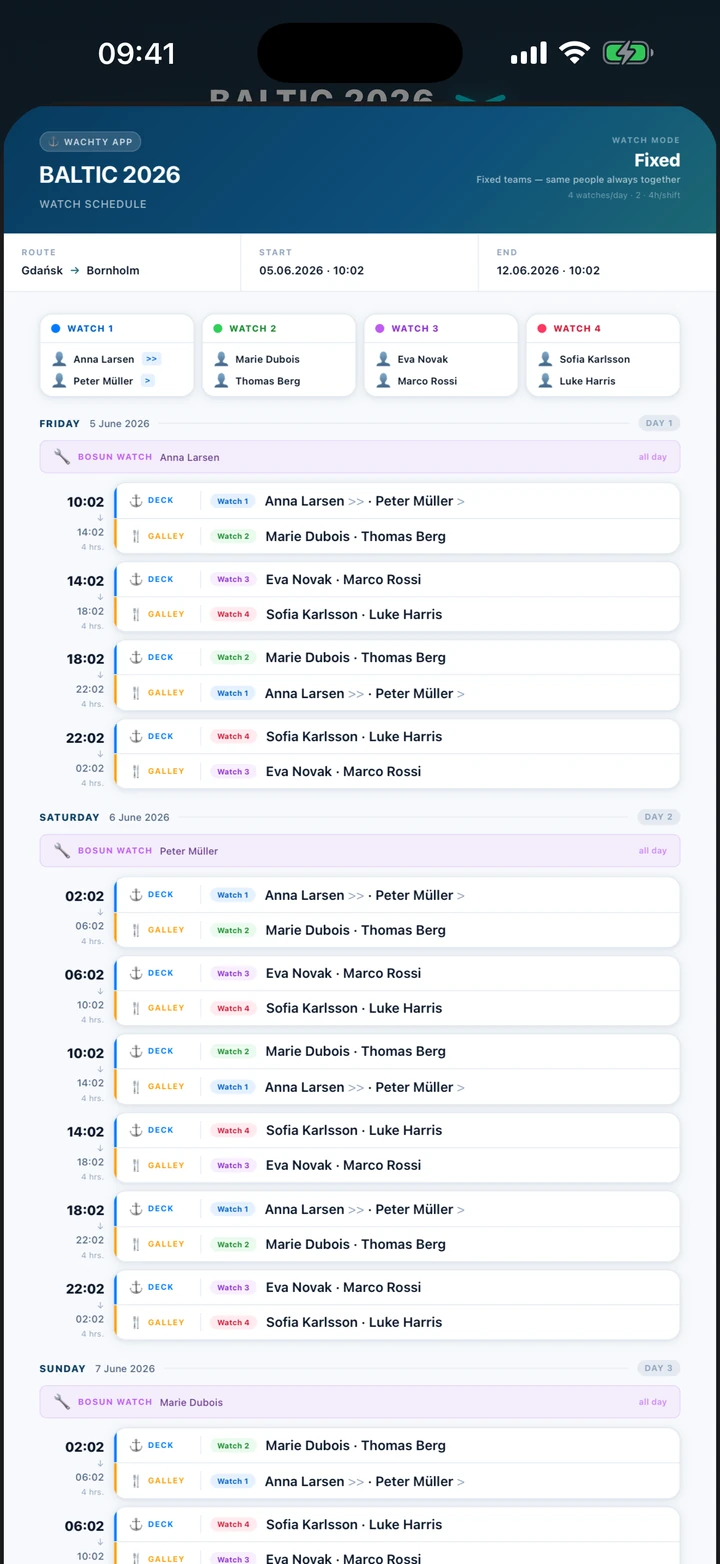
Jednym kliknięciem wygeneruj pełną listę załogi (Crew List) oraz harmonogram wacht, gotowe do druku i powieszenia w messie.
Generowanie jest możliwe z menu karty aktywnego rejsu, po kliknięciu ikony zegara,
lub bezpośrednio z kart „Załoga” oraz „Agenda”.
Send a voyage to other crew members with one click — via message, email, or AirPlay.
The file contains complete voyage data: crew list, bosun tasks, watch schedule, and statistics.
You can send a voyage from the active voyage card by clicking the clock icon,
or from the archive voyage list by swiping the selected voyage to the right.
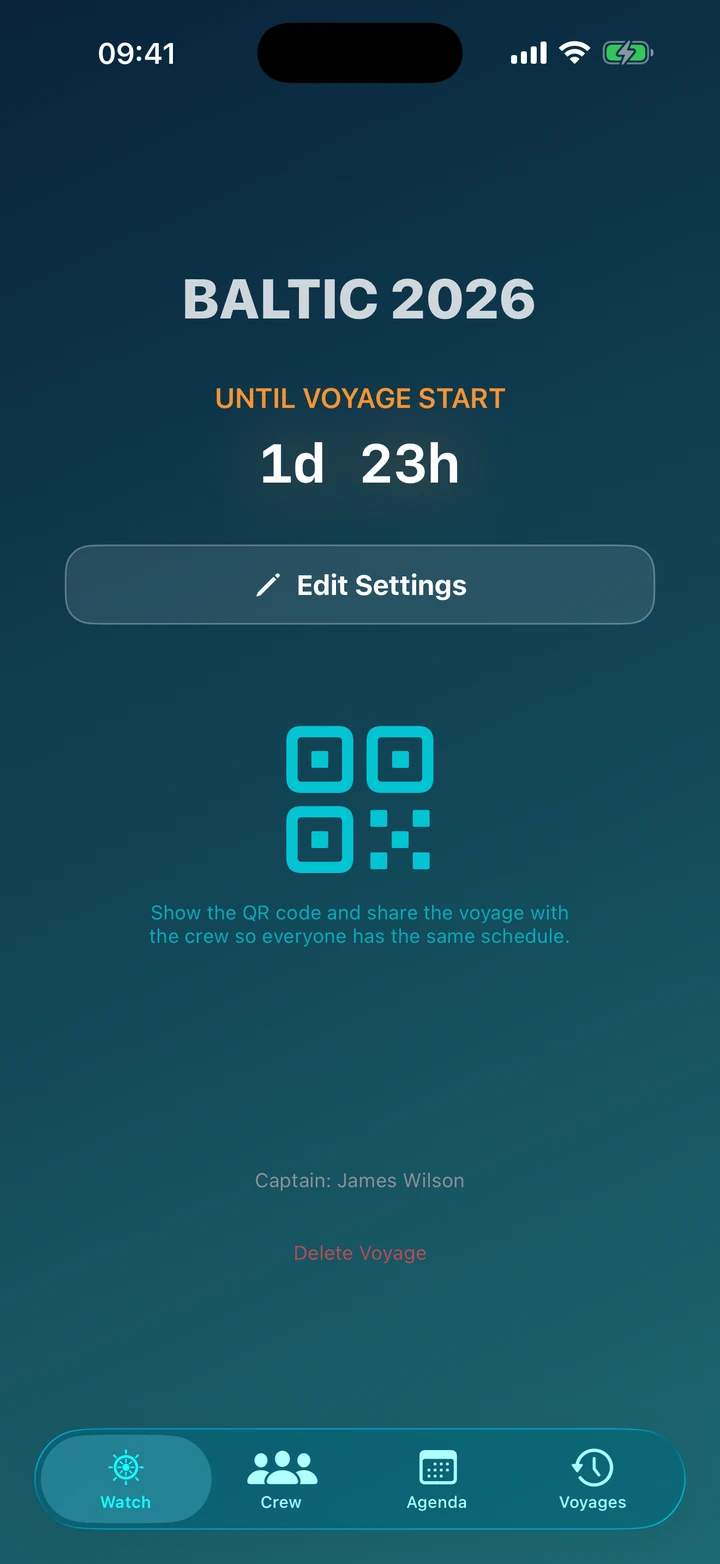
Generate a QR code for the voyage.
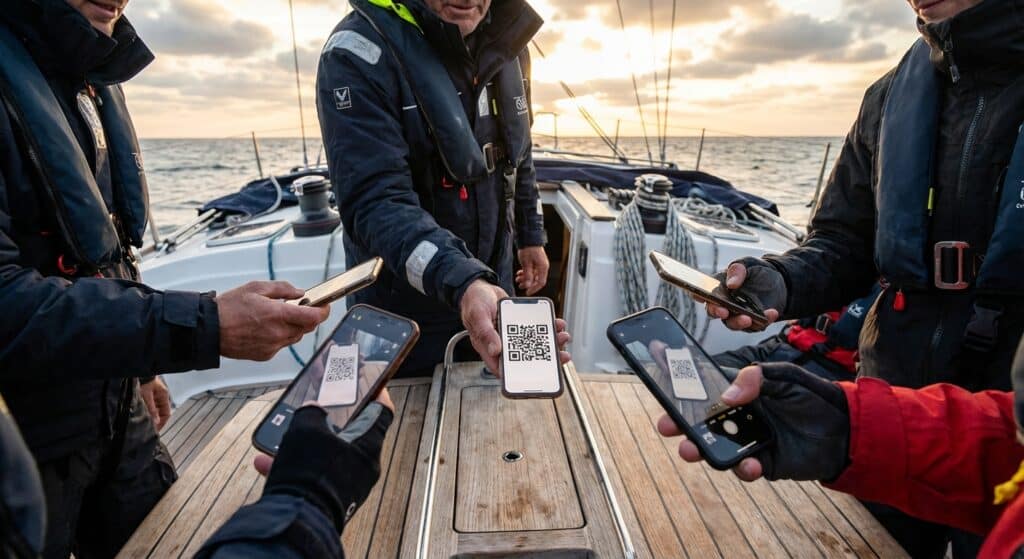
Crew members scan it with their phones and instantly receive the complete voyage plan — no data entry required.
To scan a code without an active voyage, press and hold the app logo on the cockpit.
You can also share the QR code from the active voyage card by clicking the clock icon.